
Adding and publishing a property
How to get a villa from an empty account to a live page you can send to a guest - and what each field is actually for.
Last updated
A property in Isle Stay is two things at once: the record your pricing, leads and welcome books all hang off, and the public page a guest actually sees. You create it once and it does both jobs.
This takes about ten minutes for the first one, and about three for every one after it.
Before you start
Have a few things to hand and you will not have to come back:
- Photographs. Six to ten is plenty. One wide shot of the outside, the main living space, each bedroom, the kitchen, and the view if there is one.
- The basics. Bedrooms, bathrooms, how many it sleeps, roughly where it is.
- A price you are happy with today. It does not have to be right - you can change it whenever you like, and the Pricing Assistant will suggest a seasonal shape for it later.
You do not need a description written. There is a prompt for that below.
1. Create the record
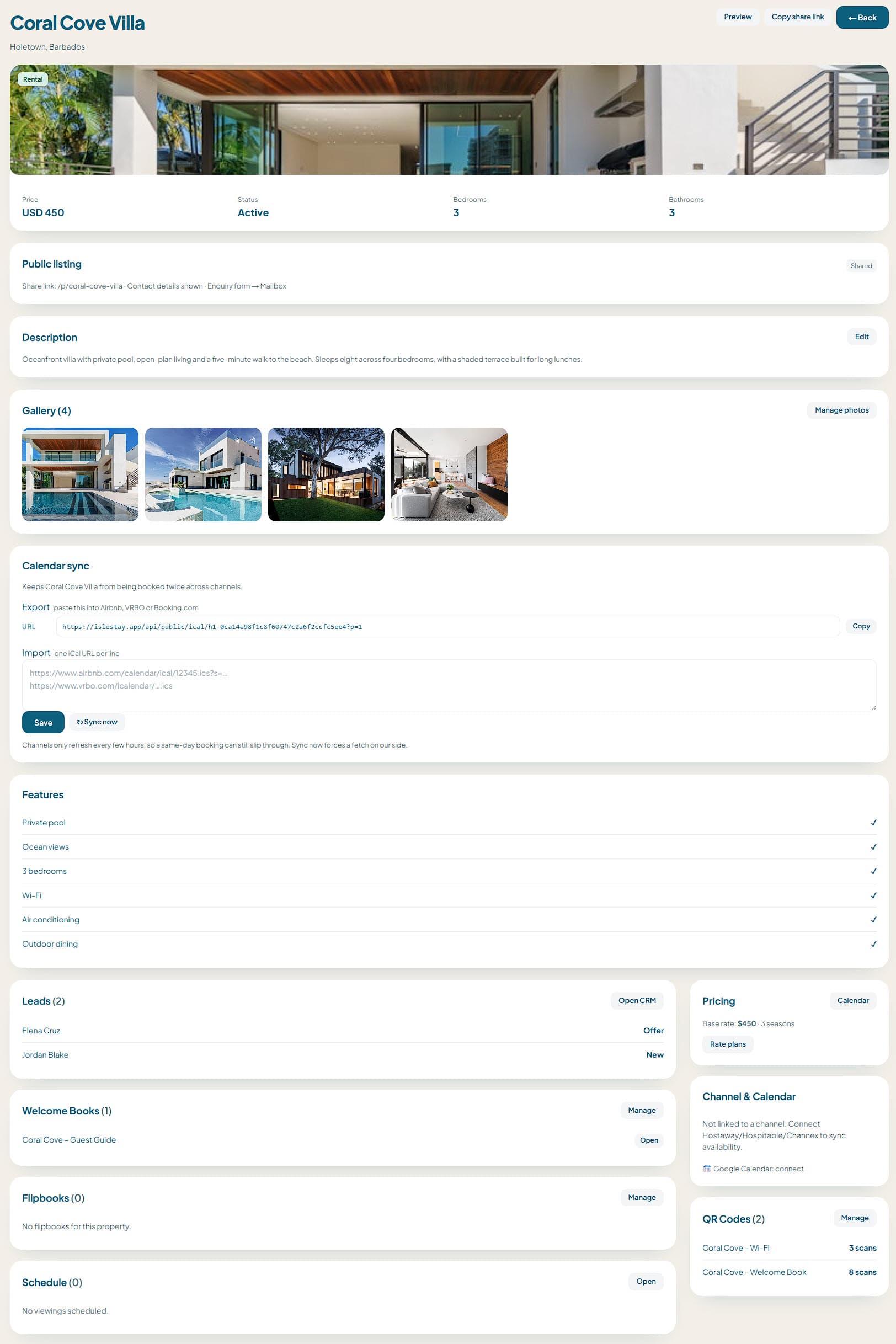
Open Portfolio and choose Add a property.
Only two fields are required: a name and the island or area it is on. Everything else can be filled in later, and the property will sit quietly as a draft until you decide otherwise. Nothing is public yet.
Give it the name you would actually say out loud - "Saffron Palms Villa 4", not "SP-004". The name appears on the guest page, in enquiry emails and on the QR codes, and an internal reference number in those places just looks like a mistake.
2. Fill in the details
The fields are in the order a guest asks about them, which is also the order they appear on the public page.
Sleeps, bedrooms, bathrooms. These do more than fill in a table. The Pricing Assistant reads them, and so do the enquiry filters, so a property with these left blank gets weaker rate suggestions.
The description. Two short paragraphs beats one long one. Lead with what somebody cannot get anywhere else - the view, the walk to the beach, the cook who comes with it - and leave the inventory of appliances for the amenities list. If you are stuck, write the answer to "why did the last guest book this one instead of the villa next door", and edit it afterwards.
Amenities. Tick everything true. These are what the filters match on, so an unticked pool is a property that quietly does not appear when somebody searches for one.
3. Add the photographs
Drag them in, or choose Upload. They are resized in the browser before they are sent, so a folder straight off a phone or a camera is fine - you do not need to shrink anything first.
The first photograph is the cover. It is the one that appears on the listing card, in the enquiry email and when the link is pasted into WhatsApp, so make it the strongest exterior or view shot rather than a hallway. Drag any image to the front to change it.
A practical note: photographs taken in the middle of the day tend to look flatter than the same room an hour before sunset. If you are reshooting anything, reshoot at either end of the day.
4. Set a rate
Open Pricing on the property and set a base nightly rate.
That single number is enough to publish. When you are ready, the Pricing Assistant can read the property's size, location and local demand and suggest an off-season, shoulder and peak shape around it - but it suggests, and nothing changes until you accept it.
5. Publish it
Back on the property, switch it from Draft to Live.
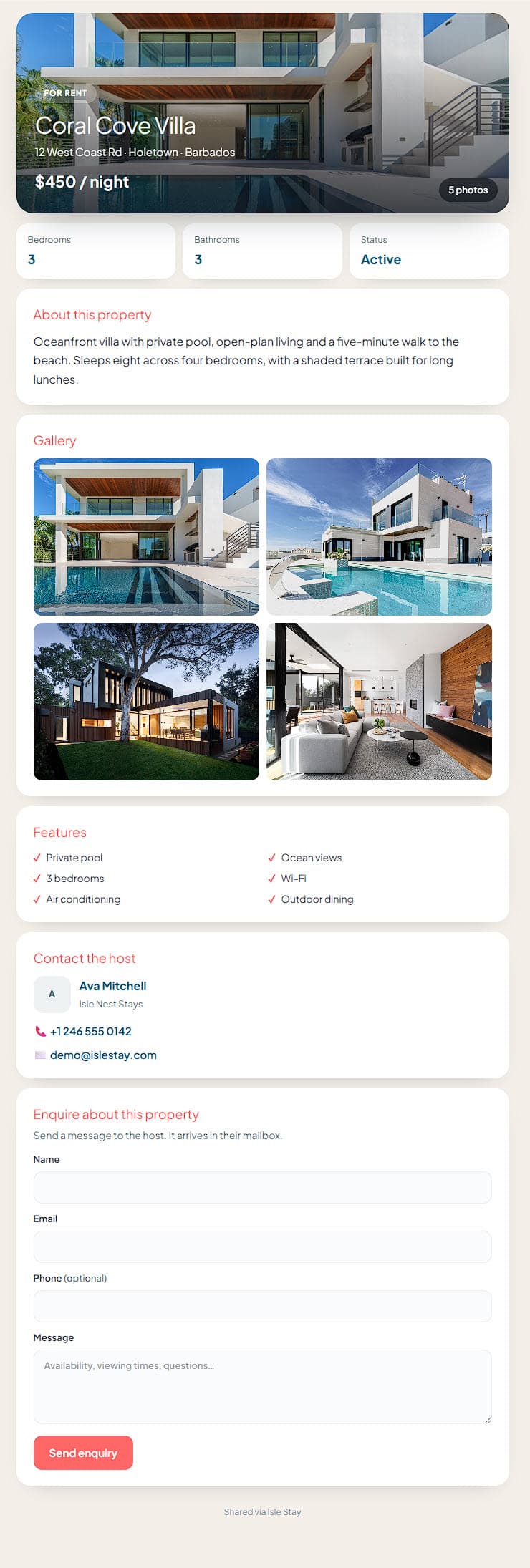
The moment you do, it appears on your public site and gets its own page. You can find the link on the property itself under View public page - that is the URL to put in a WhatsApp reply, an Instagram bio or an email signature.
What happens next
Once a property is live:
- The enquiry form on its page sends straight to your Leads, not to a channel, and you keep the whole booking.
- A welcome book and QR codes can be attached to it, so a guest already in the villa can find the wifi password without messaging you at 11pm.
- It starts counting toward your plan's property limit. The free plan covers your first property; if you are running a portfolio, the limit is the thing that decides which plan you need.
If something is not right
The page says "not found". The property is still a draft. Switch it to Live and reload.
The cover photo is the wrong one. Drag the one you want to the first position - the cover follows the order, there is no separate setting.
The public page shows an old price. Rates cache briefly. Give it a minute and reload; if it is still wrong after that, it is worth reporting.
Anything else, open Help & Support in your hub. It tells us which page you were on, so you do not have to explain the setup before you can ask the question.
Still stuck?
If a guide does not cover it, open Help & Support inside your hub. It comes through with the page you were on and your plan attached, so you can just describe what happened.
Sign in and ask